
Ticket triage is deciding, for every new ticket, what kind of problem it is, how urgent it is, and who handles it next, before anyone writes a reply. On a WordPress plugin or theme team, most of that comes down to one question: is this our bug, the customer's setup, or something we have already seen?
Most guides to ticket triage are written for IT service desks. Their categories are hardware failures, password resets and billing disputes.
This one is for the people who answer tickets about a plugin or a theme. The categories, the priority rules and the examples all come from that work.
What is ticket triage?
The word comes from emergency medicine, where someone at the door decides who is seen first. In support, triage happens between the moment a ticket arrives and the moment someone starts working on it.
A triage pass answers three questions:
- What is it? A bug, a conflict, a setup question, a feature request, a duplicate.
- How urgent is it? Based on what is broken and for how many people, not on how the customer worded it.
- Who takes it? Support, a developer, billing, or nobody because it is already answered somewhere.
Doing this as its own step matters because the alternative is that whoever opens the ticket first starts typing. Then an urgent bug waits behind three "how do I" questions.
Why generic triage categories fail on plugin tickets
A help desk guide tells you to label tickets by category when they arrive. On a plugin team, you usually cannot.
"The contact form stopped working" can be a bug in your latest release, a conflict with the theme, a host that blocks outgoing email, or a setting the customer changed. The symptom is the same in all four.
So on a plugin team, the category is not something you read off the ticket. It is what triage finds out.
That changes how you design the process. You need a first label for what the ticket claims, and a second, firmer label once someone has checked.
Categories that fit a plugin or theme support team
Keep the list short. These eight cover nearly every ticket a WordPress product gets:
- Bug in our code. Fails on a clean site with only your plugin and a default theme. Goes to a developer, with a GitHub issue.
- Conflict with a theme or another plugin. Works on a clean site and fails on theirs. Support handles it, often with a snippet or a compatibility fix.
- Hosting or server. PHP version, memory limit, blocked email, caching. Support explains what the host needs to change.
- Setup or how-to question. Nothing is broken; the customer needs a setting or a doc link. Support answers it, ideally from a saved reply.
- Feature request. Logged where your product decisions live. Support replies honestly about whether it is planned.
- Duplicate of a known issue. Linked to the existing issue or ticket, and the customer is told when the fix ships.
- License, billing or account. Goes to whoever handles orders.
- Not ours. Spam, a different product, or a question for the theme author. Closed politely.
Resist adding a category for every symptom. If two categories always get the same next step, merge them.
How to set priority on a plugin ticket
The customer's word "urgent" is not a priority. Neither is a subject line in capitals.
Ask these instead, in order:
- Is something broken for the site's visitors? A checkout that fails or a form that loses submissions costs the customer money every hour.
- Is data being lost? Missing entries or orders are worse than a layout glitch.
- How many customers have it? Three tickets with the same symptom since a release is a different problem from one.
- Does it affect the latest version? A bug already fixed in the current release only needs an update.
- Is there a workaround? A snippet or a setting that works today lowers the urgency of the real fix.
That gives you four useful levels: now, today, this week, and backlog.
A broken checkout reported by several customers after your last release is "now". A how-to question is "today", because a fast answer is still good support.
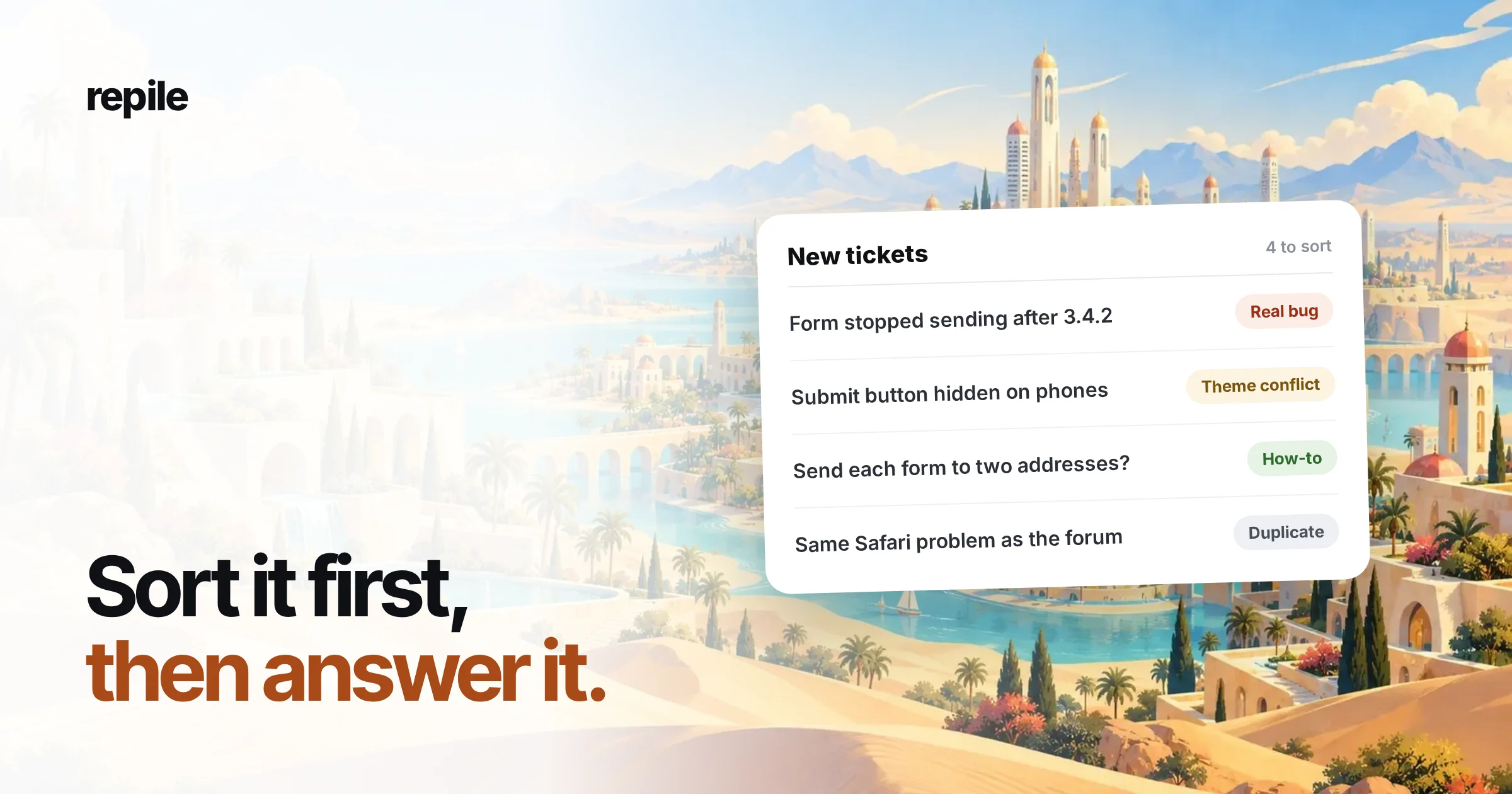
A triage pass on four example tickets
Here is how a short morning queue for Formwise, a form plugin, might sort. The tickets are examples.
Ticket #412, Dana Whitfield at Northwind Bakery: "Orders form stopped sending after I updated." Dana is on 3.4.2, the latest release, and two other tickets since that release mention email.
- First label: possible bug.
- Priority: now, because submissions are being lost.
"The submit button is hidden on my phone." Nobody else reports it, and the customer uses a theme with a sticky header.
- First label: likely theme conflict.
- Priority: today.
"Can Formwise send each form to two addresses?" It can, from a setting.
- Label: how-to.
- Priority: today, answered with a saved reply.
"Same problem as the forum thread about Safari." The thread is linked to an open GitHub issue.
- Label: duplicate.
- Priority: tied to the issue, and the customer is added to the list of people to tell when it ships.
Notice that only the first ticket needs a developer. Triage done well protects their time as much as the customer's.
What to check before you trust a label
The first label is a guess. These checks turn it into a verdict:
- The version the customer runs against your latest release and its changelog. Many "bugs" are already fixed.
- Recent tickets and open issues with the same symptom. Three reports in a day is a release problem.
- The site details: WordPress and PHP versions, theme, and active plugins. Tools > Site Health > Info has all of it in one copy.
- Your own code for the path the customer describes. The changelog says what you meant to change; the code says what you shipped.
When those checks are not enough, someone has to reproduce the problem on a copy of the site. That is where triage ends and investigation starts.
Common ticket triage mistakes on plugin teams
- Labeling by symptom. "Form issue" tells the next person nothing. Label by cause once you know it.
- Letting the customer set the priority. Everyone's ticket is urgent to them. Use the questions above.
- Forgetting the WordPress.org forum. Forum topics are tickets too, and they are public. Triage them in the same pass.
- Closing duplicates and forgetting them. The customer still needs to hear when the fix ships.
- Too many categories. If people hesitate between labels, the list is too long.
Where Repile fits
Repile does this first pass for plugin and theme teams. It reads each new ticket and triages it: a real bug, a setup question or a duplicate, and what it needs to check before anyone answers.
It picks up new tickets from FreeScout and Help Scout, and new topics and replies on your WordPress.org support forum. It skips spam and thank-you replies, and each mailbox can be routed to the project for that product (see the FreeScout docs).
Each project has its own instructions, so you can tell it how your product works. For example: always ask for the Formwise version, or never promise release dates.
When a ticket looks like a bug, Repile reads your plugin's code from GitHub at the release the customer has installed. It can test the bug on a sandbox, and it asks for approval before it clones a customer's site.
It then leaves an internal note with the verdict and a reply draft in the ticket. A person on your team reads the draft and presses send.
Repile is not a helpdesk. Status and assignment stay in FreeScout or Help Scout, and Repile mirrors them.
If you need a place to receive email in the first place, start with a helpdesk and add Repile to it.
If a ticket sits too long, the project's Director can tag the right person with stall and unanswered alerts. See how it fits a plugin company, or compare the plans.