
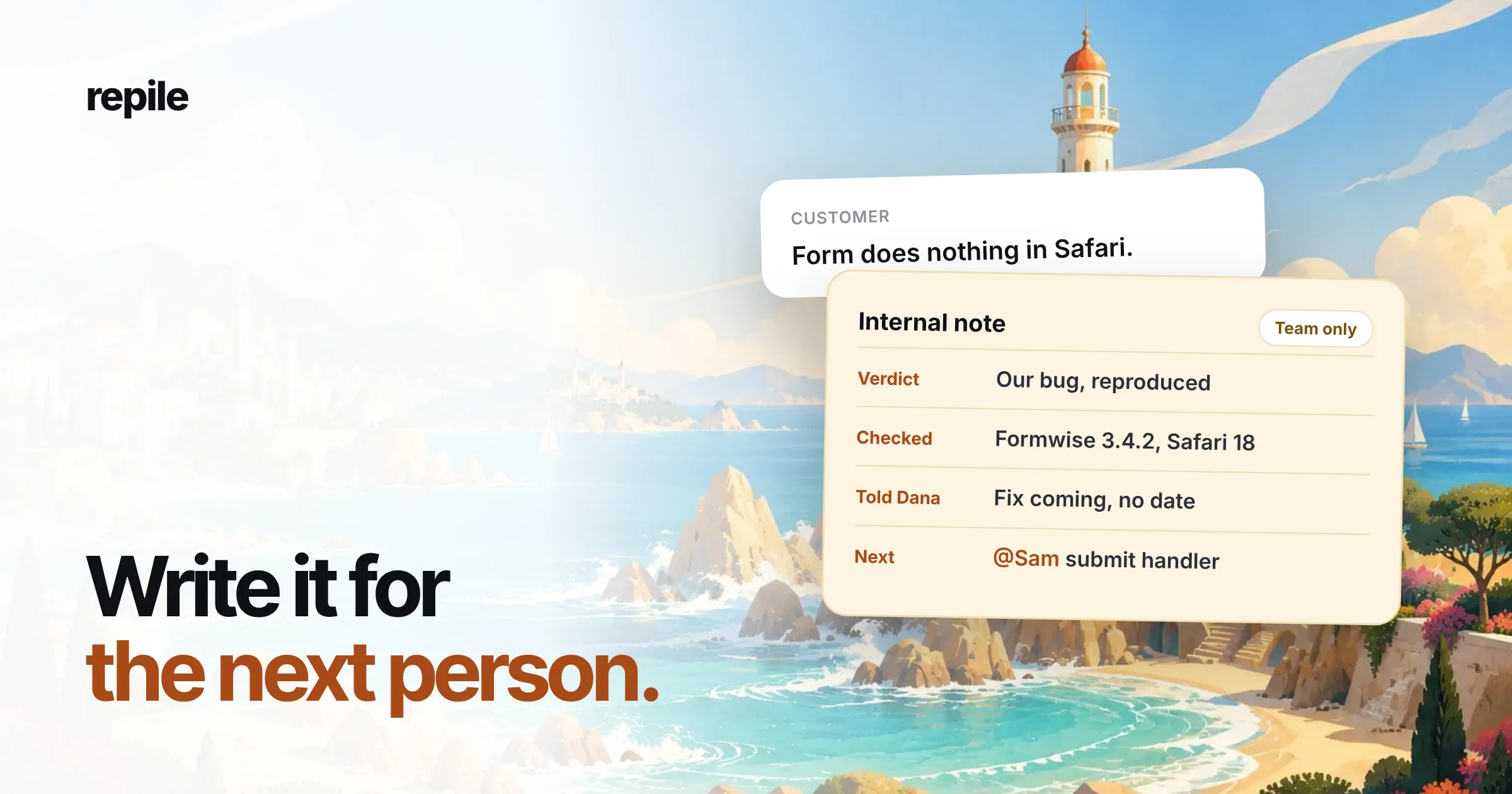
An internal note is a private message on a support ticket that only your team can see. On a WordPress plugin or theme ticket, a good one says what you checked, what you found, what the customer was told and who does what next.
The test is simple: could a teammate or a developer pick the ticket up tomorrow and carry on without asking you anything?
What are internal notes?
Every helpdesk has them. Help Scout calls them notes, FreeScout calls them notes too, and other tools call them private comments or internal comments.
They sit in the ticket thread next to the customer's messages, but the customer never receives them. They are where your team talks about the ticket.
Internal note vs reply
A reply goes to the customer. A note stays with your team.
That makes a note the right place for anything the customer does not need: a guess you have not confirmed, a question for a developer, or a decision about a refund.
Private does not mean secret, though. Notes are part of the customer's record, and under privacy laws like GDPR a customer can ask for the data you hold about them.
Write every note as if the customer might read it one day.
Why plugin tickets need better notes
A plugin ticket rarely stays with one person. It moves from first-line support to whoever knows the code, then to a developer, and sometimes back to support weeks later when the fix ships.
Every handoff loses something unless it is written down. The usual losses on plugin tickets are the versions, the steps that triggered the problem, and the things you already ruled out.
Without them, the next person asks the customer for the same Site Health info again, or tests the same plugin conflict again. Both cost a day.
What to put in an internal note on a plugin ticket
Five parts cover almost every note. Skip the ones that do not apply.
- Environment. Plugin version, WordPress and PHP versions, theme, and any plugin that matters. Copy them once, so nobody has to scroll the thread.
- What you checked. Each test you ran, and the result. "Tried with Twenty Twenty-Five, form works" saves the next person an hour.
- What you found. Your verdict and how sure you are. Separate what you saw from what you suspect.
- What the customer was told. Especially any promise: a workaround, a date, a refund.
- Next step and owner. One action and one name. A note without a next step is a diary entry.
Put the verdict first. The reader wants to know where the ticket stands before they read how you got there.
Internal note examples
These use the same example ticket throughout: Dana Whitfield at Northwind Bakery reports in ticket #412 that the Formwise contact form does nothing in Safari after she updated to 3.4.2.
1. After you reproduced the bug
Verdict: our bug. Reproduced.

Env: Formwise 3.4.2, WP 6.8, PHP 8.2, Crumb theme.
Steps: open /contact/ in Safari 18, fill the form, press Send.
Result: nothing happens, console shows a JS error in
formwise-submit.js. Chrome and Firefox work.
3.4.1 works in Safari, so it came in with 3.4.2.

Told Dana: we reproduced it and are working on a fix.
No date promised.
Next: @Sam to look at the 3.4.2 change to the submit handler.
2. When it is the theme, not your plugin
Verdict: theme conflict, not our bug.

Switched to Twenty Twenty-Five on a copy of the site:
form submits fine. Back on Dana's theme, the theme's
stylesheet hides .fw-submit on screens under 430px.

Told Dana: the cause, and a CSS snippet to show the button.
Suggested she also tell the theme author.
Next: none. Close if Dana confirms.
3. Handing off to a developer
Developers want the shortest path to the failing line. Give them steps, versions and what you ruled out, and leave out the conversation.
@Sam handing this one to you.

Bug: Formwise 3.4.2 form does not submit in Safari only.
Steps and env are in the note above.
Ruled out: caching plugin (disabled, same result),
theme (same on Twenty Twenty-Five).
Customer impact: Dana's contact form is down on Safari.
She is fine with a workaround if the fix takes a while.
4. Waiting on the customer
Waiting on Dana for Site Health info (asked today).
Without it we cannot tell if this is the PHP 8.3 issue
from ticket #409 or something new.
If no reply in 3 days, send the follow-up saved reply.
5. Asking for a decision
When the note is for a lead or a founder, give them the decision, the options and your recommendation. They do not need the debugging story.
@Lead decision needed: refund or not?

Dana bought the yearly license 40 days ago. Policy is 30.
The bug is ours and still open.
Recommend: refund, or offer a free extension until the fix ships.
6. After the fix ships
Fixed in the next release (changelog entry added).
Told Dana it is out and asked her to update.
Workaround CSS can be removed after updating.
Next: close in 3 days if no reply.
If your team reuses note templates, treat them like canned responses: one job each, and never a hard-coded version number.
What not to put in an internal note
- Passwords and login links. A note is read by everyone on the team and kept forever. Use a password manager or your helpdesk's secure field, if it has one.
- Opinions about the customer. "Rude customer" helps nobody and reads badly if the note is ever shared.
- Raw logs with no summary. Paste the one line that matters and say why it matters. Attach the rest.
- "Looked into it." Say what you looked at and what you saw, even if the answer was nothing.
- Things the customer should know. If it changes what they should do, it belongs in the reply.
When you do not need a note
A one-reply ticket that is answered and closed does not need a note. "How do I send each form to two addresses?" with a link to the docs is complete on its own.
Write a note when the ticket will be touched again: a handoff, a wait, an open bug, or a decision someone else has to make.
Internal notes on the WordPress.org forums
The WordPress.org support forums have no private notes. Everything you write in a forum topic is public.
If your free plugin's forum feeds bugs into your team, keep the working notes somewhere private, like a linked GitHub issue or a ticket in your helpdesk. Then the forum reply can stay short and the details stay with your team.
Where Repile fits
Repile writes the first internal note for you. It picks up new tickets from Help Scout, FreeScout and your WordPress.org forums, sorts each one, and reads your plugin's code to check whether it is your bug or something on the customer's side.
Then it leaves an internal note with the verdict and a reply draft in the ticket. A person on your team still reads the draft and presses send.
The note is a starting point your team can question.
In Help Scout, or in FreeScout with the Repile module, you can @mention Repile in a note and it re-checks and answers in the thread. On the WordPress.org forums, which have no private notes, Repile leaves only a reply draft.
You decide what goes into the note. On each project's Instructions tab, you write the steps, the note and the draft reply you want on every ticket, as the Help Scout and FreeScout setup guides explain.
Repile is not a helpdesk. Your notes stay in Help Scout or FreeScout, where your team already reads them.
If you want every plugin ticket to start with a note like example 1, see how Repile works for plugin companies, or compare the plans on the pricing page.