
A troubleshooting guide is a help page that starts from a symptom the customer sees and walks them through checks, in order, until the problem is fixed or they know exactly what to send support. For a WordPress plugin or theme team, the best guide is written from the tickets you already answer, so it covers the problems people actually hit.
Search "troubleshooting guide" and you find two kinds of pages: product guides from large software vendors, and documentation tools explaining the format.
Both are useful, but neither covers a plugin team's situation. Your customers run thousands of different sites, and many of their problems come from a theme, a host or another plugin.
This guide covers how to write for that.
What is a troubleshooting guide?
A troubleshooting guide is a set of entries, one per problem. Each entry names the symptom, lists the likely causes, and gives the checks to run, safest and most likely first.
It differs from a how-to article. A how-to starts from a task ("set up email notifications").
A troubleshooting entry starts from something that went wrong ("the form submits, but no email arrives").
That difference matters for search. Customers type what they see, so the entry title should use their words, not the name of your settings screen.
Troubleshooting guide vs FAQ vs known issues
Plugin teams often have all three, and they blur together. Each has a different job:
- An FAQ answers questions about how the product works. "Does Formwise work with WooCommerce?"
- A known issues list names confirmed bugs that are not fixed yet. We wrote a guide to keeping a known issues list.
- A troubleshooting guide handles problems that are usually not your bug: settings, caching, email delivery, conflicts, hosting limits.
When a troubleshooting entry turns out to describe a real bug in a release, move it to known issues. When the bug is fixed, it moves to the changelog.
Which problems belong in the guide?
Start from your helpdesk, not from a brainstorm. The tickets tell you which problems are common and how customers describe them.
A simple way to pick the first entries:
- Look at the last three months of tickets. Group them by symptom, not by cause.
- Count the repeats. A symptom that came up ten times deserves an entry. One strange site does not.
- Check the WordPress.org forum too. Free users often never open a ticket, but they ask the same things.
- Note the words people used. "Emails not sending", "no notification" and "didn't get the entry" are often one entry with three phrasings.
For most plugins, five to ten entries cover the bulk of repeat tickets. Start there and add more as new patterns appear.
If your team already tags tickets during ticket triage, those tags are the list. A tag like "email delivery" with forty tickets is your first entry.
What each entry needs
Keep the structure the same for every entry, so customers learn how to read it. These fields cover almost every plugin problem:
- Symptom as the title. What the customer sees, in their words. Quote error messages exactly, so search can match them.
- Who it affects. Plugin version, plan (free or Pro), and any condition such as a page builder or multisite.
- Likely causes. Two to four, most common first. This tells the reader where the steps are heading.
- Checks, in order. Numbered steps, one change per step, each with a way to tell whether it worked.
- How to confirm it is fixed. Repeat the action that failed. "Submit a test entry and check your inbox."
- Still stuck? What to send support, so the ticket arrives ready to work on.
The last field is the one most guides skip. It is also the one that saves a support team the most time.
A troubleshooting guide template
Copy this for each entry. Replace the bracketed parts and delete any line you do not need.
[What the customer sees, in their words]

Affects: [plugin] [versions], [free / Pro], [any condition]
Likely causes: [cause 1], [cause 2], [cause 3]

1. [Safest, most likely check]
   Did it work? [how to tell]
2. [Next check]
   Did it work? [how to tell]
3. [Check that changes more, with a warning if needed]
   Did it work? [how to tell]

Confirm the fix: [repeat the action that failed]

Still stuck? Open a ticket and include:
- your Site Health info (Tools > Site Health > Info > Copy site info)
- which steps above you tried, and what happened
- the exact error message or a screenshot

Last checked: [plugin version]
The "Last checked" line tells your own team when the entry needs a review. It also tells a customer on an old version that the steps may differ.
An example: form submits, but no email arrives
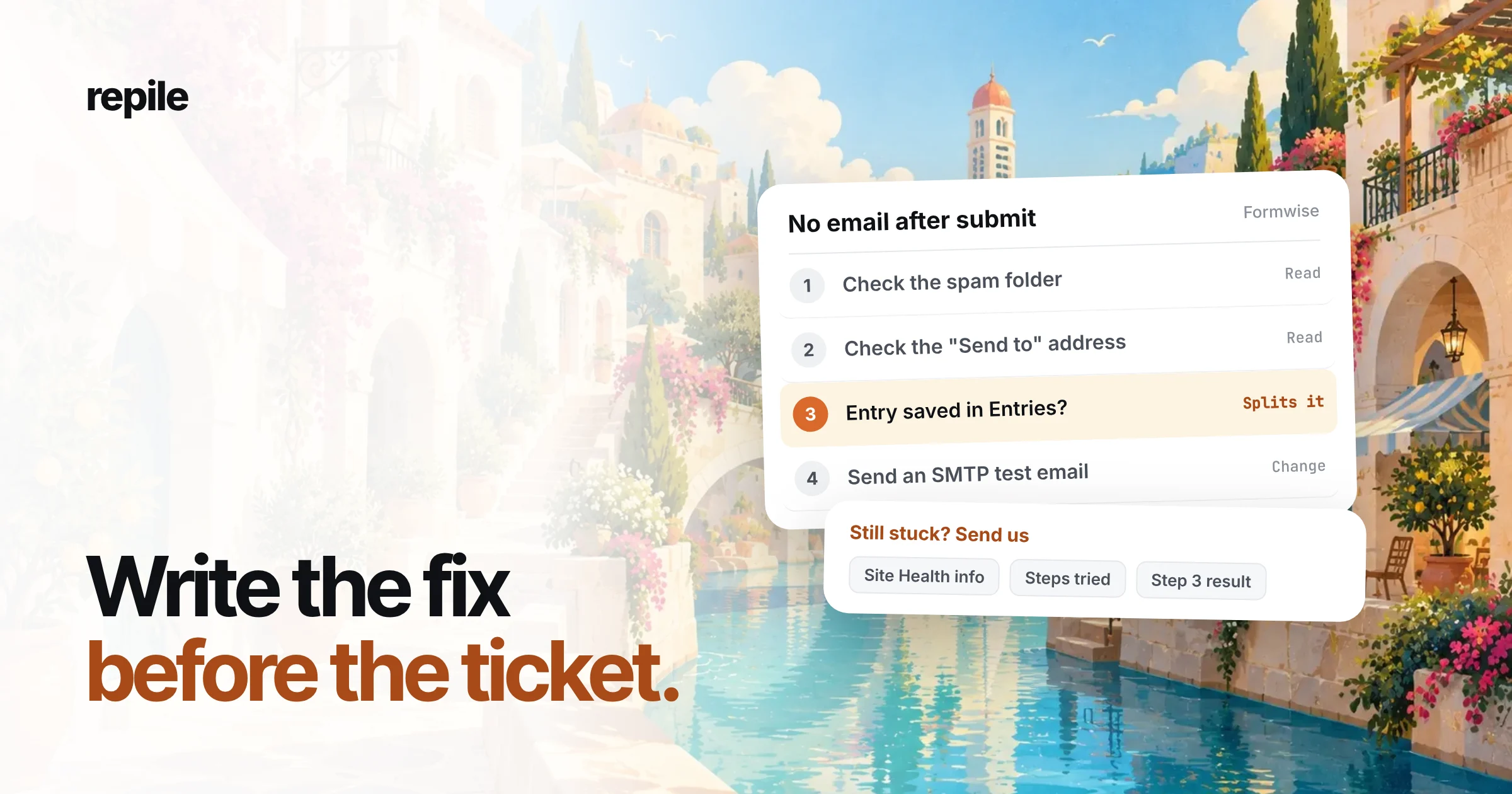
Here is how an entry might read for Formwise, a form plugin. The settings names and steps are an example, not a real plugin's screens.
Form submits, but no notification email arrives

Affects: Formwise 3.x, free and Pro.
Likely causes: email in spam, wrong notification address,
the site cannot send mail reliably.

1. Check your spam or junk folder for the notification.
   Did it work? If it is there, mark it as not spam.
2. Open Formwise > Settings > Notifications and check the "Send to" address.
   Did it work? Fix any typo and submit a test entry.
3. Check Formwise > Entries.
   If the entry is saved, the form works and the problem is email delivery.
4. Install an SMTP plugin and send its test email.
   Did it work? If the test fails, contact your host about outgoing mail.

Confirm the fix: submit a test entry and check the inbox.

Still stuck? Open a ticket with your Site Health info,
the steps you tried, and whether the entry shows in Entries.

Last checked: Formwise 3.4.2
Step 3 is the important one. It splits "the form is broken" from "the email is not delivered", which are two very different tickets.
If Dana Whitfield at Northwind Bakery follows this entry and still writes in, ticket #412 arrives with the answer to step 3 already in it. That is the guide doing its job even when it does not solve the problem.
How to order the steps
Order matters more than completeness. A customer who gives up at step two should already have tried the checks most likely to help.
- Most likely first. If spam folders explain most of your email tickets, that is step one.
- Safest first. Reading a setting comes before changing one, and changing one comes before deactivating plugins.
- One change per step. If a step changes two things, nobody knows which one fixed it.
- Warn before anything risky. Switching themes or deactivating plugins on a live store can break checkout. Say so, and suggest a staging copy.
Avoid "deactivate all other plugins" as an early step. It is the step customers skip, and on a live site it can cost them sales.
Should the guide end with a ticket?
Yes, on purpose. A good troubleshooting guide does not try to stop every ticket.
It makes the ones that still arrive easier to answer.
Tell people exactly what to include, and link your support form from the bottom of every entry. Our post on how to write a support ticket is written so you can link it there.
When a customer says "I tried steps 1 to 3", your reply can start at step 4. That is the difference between a two-message ticket and a six-message one.
How to keep the guide current
A troubleshooting guide goes stale with every release. A renamed setting or a moved menu makes a correct entry useless.
- Review the guide with each release. Check every entry that mentions a screen you changed.
- Watch for tickets that quote the guide. "I did step 2 but the menu isn't there" means the entry is out of date.
- Retire entries nobody needs. If a problem stopped appearing in tickets, the fix probably shipped. Remove the entry or move it to an archive.
- Give one person the guide. On a small team, the person running triage that week sees the new patterns first.
Where Repile fits
Repile is not a docs tool, so it will not write or publish your troubleshooting guide. It works on the tickets that arrive after the guide, inside FreeScout, Help Scout, your WordPress.org forum and GitHub.
Each Repile project has instructions for one product. You can tell it there which guide entry to link for which problem, the same way the Projects docs suggest listing known issues.
When a ticket arrives, Repile triages it and, when it needs to, reads your plugin's code for the release the customer has installed. It says whether the cause is your bug, their theme or their hosting.
It then leaves an internal note and a reply draft in the ticket. A person on your team reads the draft and presses send.
The internal notes are also good raw material for the guide. A cause that shows up in note after note is the next entry to write.
See how it fits a plugin company or a theme company, or compare the plans.