
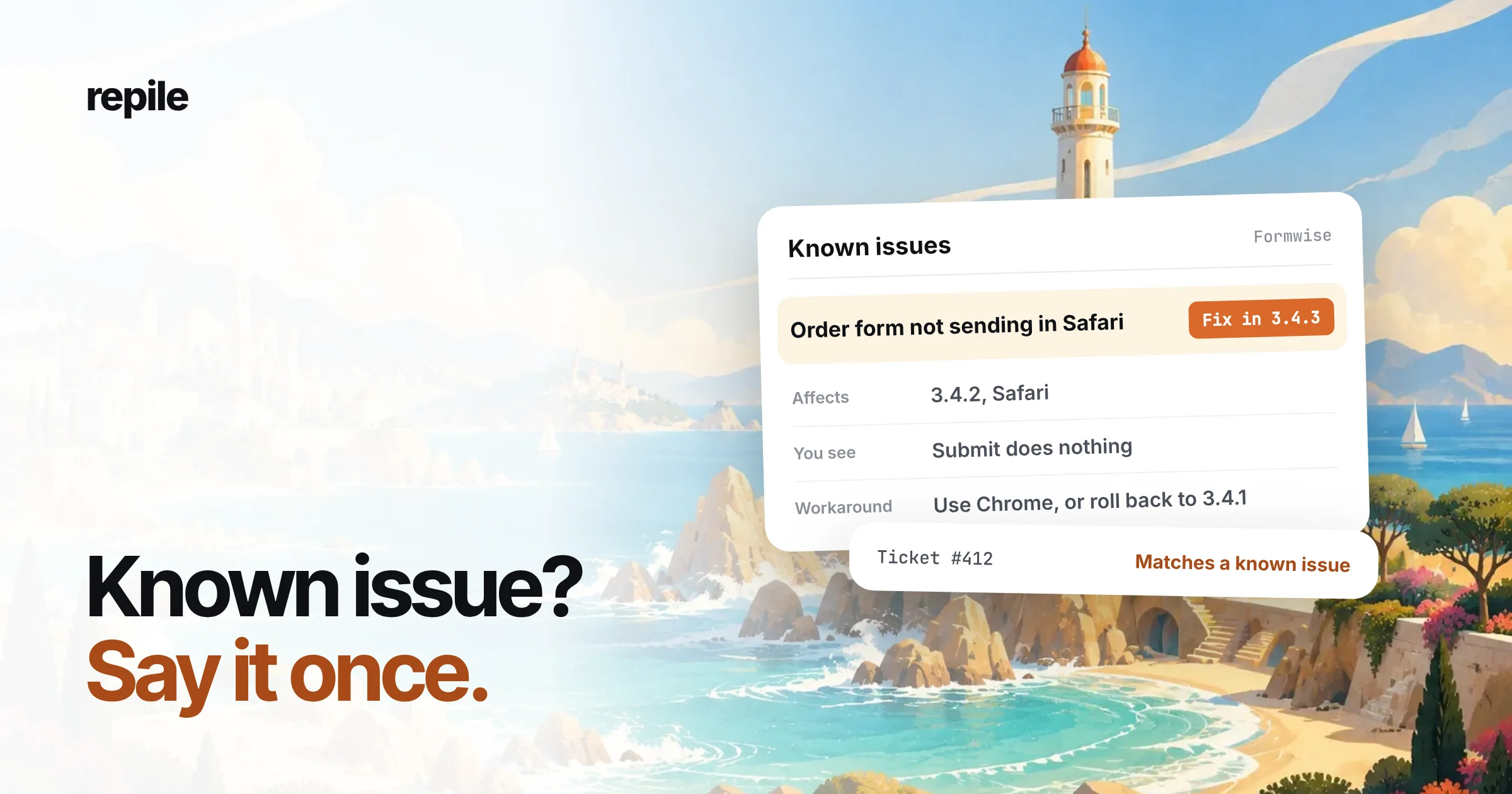
A known issue is a problem in your product that your team has confirmed and is not fixed yet, written down so customers and support can find it. For a WordPress plugin or theme team, a known issues list turns the fifth ticket about the same bug into a one-line reply instead of a fresh investigation.
Search "known issues" and you get pages of other companies' lists: release notes from large software vendors, each one a table of defect numbers.
They show the format, but not how to decide what goes on the list, how to word it for customers, or how to keep it from going stale. This guide covers that, for a team that answers plugin tickets every day.
What are known issues?
A known issue is a defect or limitation that is confirmed, affects real customers, and is still open. The entry tells people what happens, which versions are affected, and what to do until it is fixed.
Three things make something a known issue rather than just a bug:
- It is confirmed. Someone reproduced it, so it is not a guess or a single strange site.
- People will hit it. It affects a common setup, or it already came up in several tickets.
- It is written for customers. The wording describes what they see, not what the code does.
A bug that only lives in your issue tracker is known to your developers. It becomes a known issue when the people asking about it can find it too.
Why a plugin team needs a known issues list
Plugin bugs arrive in waves. A release goes out, sites update over the next few days, and the same symptom shows up in tickets and forum topics one after another.
Without a list, every person on support rediscovers the bug. One of them reproduces it, another asks the customer for Site Health info that nobody needs, and a third writes a reply that contradicts the first two.
A known issues list fixes that in three ways:
- Customers find it first. Some read it before writing in, and the ticket never arrives.
- Support answers in one step. The ticket triage pass matches the ticket to the entry and replies with the workaround.
- The count stays honest. Every matching ticket is linked to one entry, so the team sees how many sites are affected.
What to include in a known issue entry
Keep each entry short enough to read on a phone. These fields cover almost every plugin bug:
- Title in the customer's words. "Order form not sending in Safari", not "Event listener not bound on submit".
- Affected versions. The plugin release where it started, and any WordPress, PHP or browser condition.
- What the customer sees. One or two sentences on the symptom, including what does not happen, such as no error message.
- Workaround. What a customer can do today. If there is none, say so, so nobody searches for one.
- Status. Investigating, fix in progress, or fixed in a named release.
- Fixed in. The version number once it ships, and the date.
Two fields stay internal: the linked tickets and the GitHub issue. Customers do not need them, but support does.
An example known issue for a plugin
Here is how an entry might read for Formwise, a form plugin, after Dana Whitfield at Northwind Bakery reported ticket #412. The workaround and the fix release are examples.
Order form not sending in Safari (Formwise 3.4.2)

Affects: Formwise 3.4.2, in Safari on Mac and iPhone.
What you see: clicking Submit does nothing. No error shows, and the entry is not saved.
Workaround: the form works in Chrome and Firefox. You can also roll back to 3.4.1.
Status: fixed in 3.4.3.
Last updated: when 3.4.3 shipped.
Notice what is missing. There is no blame, no internal file names, and no promised date before the fix existed.
When should a bug become a known issue?
Not every bug belongs on the list. A list with forty entries is as hard to use as no list at all.
Add an entry when one of these is true:
- Two or more customers reported it since the last release, in tickets or on the forum.
- A recent release caused it, so every site that updates will meet it.
- It loses data or money, such as dropped entries or failed payments, even if only one report arrived so far.
- It conflicts with a popular plugin or theme, and the fix depends on someone else.
Leave out bugs that only one unusual setup hits, and anything your developers will ship a fix for today. Those are handled in the ticket.
The same judgement shows up in bug triage: the severity and the number of reports decide both the priority and whether it goes on the list.
Where to publish known issues
Put the list where your customers already look for help. For most plugin teams, that is one of these:
- A known issues page in your docs, linked from the support form and your contact page.
- A pinned topic on your WordPress.org support forum, for the free version. Many forum users never visit your docs site.
- A line in your helpdesk's auto-reply, linking to the page while the wave lasts.
Keep it on one page per product. A free plugin and its Pro add-on can share a page if customers think of them as one product.
How to keep the list current
A stale known issues page is worse than none, because it tells customers a fixed bug is still broken.
- Update the status the day the fix ships. Change it to "Fixed in 3.4.3" and say how to update.
- Move fixed entries to a "recently fixed" section. Keep them there for a release or two, because some sites update late.
- Reply to the linked tickets. Everyone who wrote in about the bug gets a short note when the fix is out.
- Give one person the page. On a small team, the person who runs triage that week is a good owner.
Known issues vs release notes vs changelog
These three overlap, so teams often merge them by accident.
- Release notes describe what a new version adds and changes.
- The changelog lists every change by version, including bug fixes. On WordPress.org it lives in your readme.
- Known issues list what is still broken, across versions, until it is fixed.
When a known issue is fixed, it moves from the known issues page to the changelog entry of the release that fixed it.
How to answer a ticket that matches a known issue
Answer fast, and do not make the customer prove a bug you already know about. Confirm it, give the workaround, and say what happens next.
Our canned response examples include a saved reply for exactly this case. Keep the gaps for the version and the workaround, so the reply never sounds generic.
If the ticket only looks like a known issue, check before you send it. A similar symptom on a different version is often a different bug.
Where Repile fits
Repile is not a docs tool or a status page, so it will not publish your known issues list. It helps on the support side, where the list is used.
Each Repile project has instructions for one product. The Projects docs suggest putting known issues there, next to versions and where settings live.
Each one is a short line, such as "Known issue: the settings page is blank when another plugin loads an old copy of React. Ask which plugins are active."
Repile reads those instructions on every ticket. When it triages a new ticket from FreeScout, Help Scout or your WordPress.org forum, it decides whether it is a real bug, a setup question or a duplicate.
It then leaves an internal note and a reply draft in the ticket. A person on your team reads the draft and presses send.
When a ticket does not match anything known, Repile reads your plugin's code to find the cause. That is often how a new entry for the list is found.
See how it fits a plugin company, or compare the plans.