
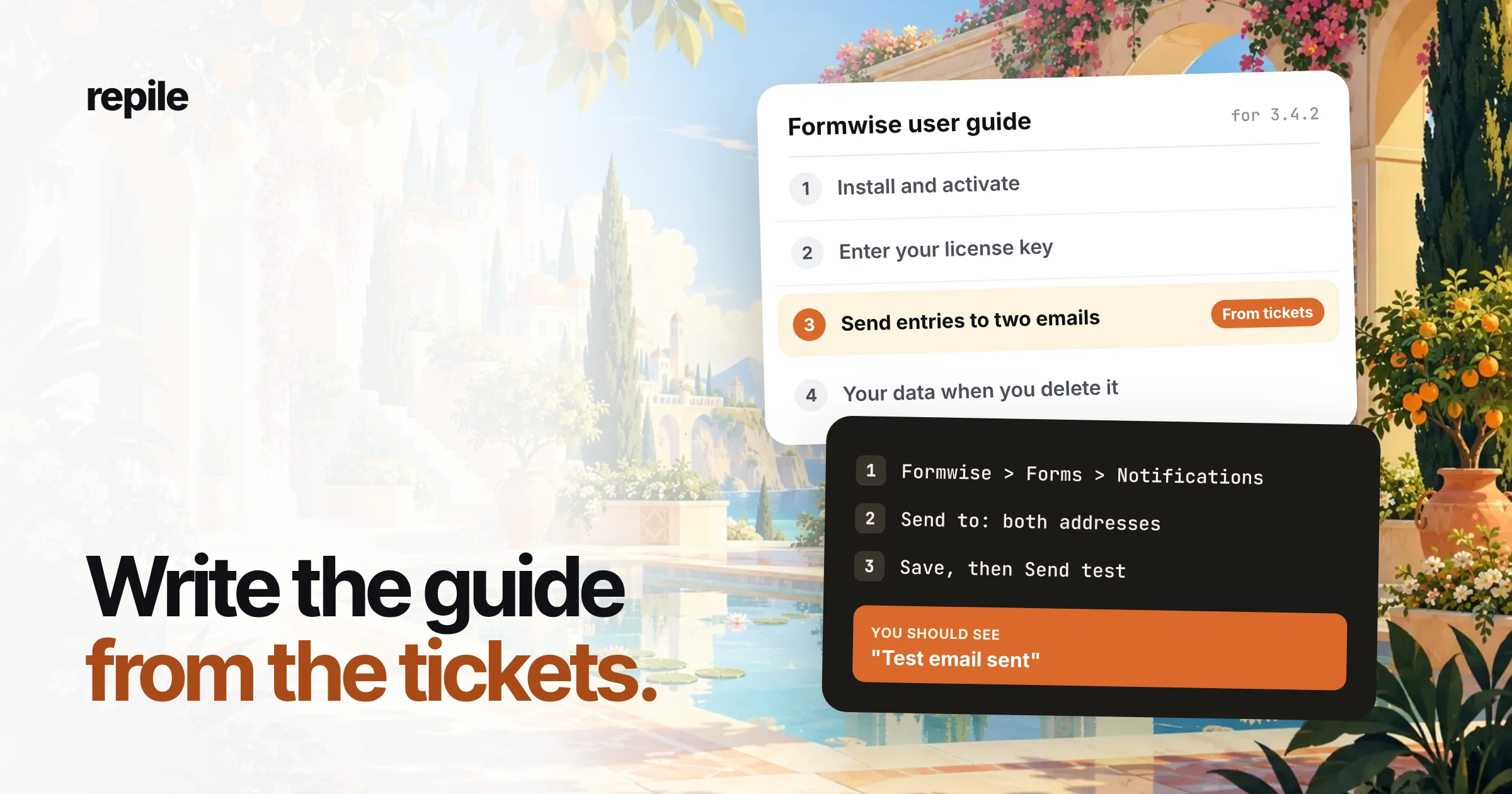
A user guide template is a fixed outline for your product's documentation: getting started, one page per task, a settings reference, and where to get help. For a WordPress plugin or theme, the best guide is planned from your support tickets, so each page answers a question customers already asked.
Search "user guide template" and you find downloads for Word, design tools and documentation platforms. They suit a printed manual for an appliance or an internal tool.
A plugin has its own needs: free or Pro, license keys, compatibility with themes and builders, settings that move between releases, and what happens to data on delete. This guide is for the team that answers tickets about those things.
What is a user guide?
A user guide explains how to do things with a product, one task at a time. It is written for the person using it, in the order they meet it.
For a plugin team, the guide is also the page support links to most. When a reply says "here are the steps", the steps should already exist in the guide.
User guide, FAQ, troubleshooting guide: which is which?
These get mixed up, and a mixed-up guide is hard to search. Keep each one to its own job.
- User guide: how to do a task that works. "Send entries to two email addresses."
- FAQ: short answers to repeated questions, often before buying. Our FAQ template covers it.
- Troubleshooting guide: what to check when something stops working. See our troubleshooting guide post.
- Known issues: bugs you have confirmed and not fixed yet. See known issues.
A quick test: if the customer's site is working and they want to do something, it belongs in the user guide. If it is broken, it belongs somewhere else.
What a plugin user guide needs that generic templates miss
Most templates start with a cover page, a table of contents and a glossary. A plugin guide lives on the web, so the parts that matter are different.
- Requirements up front. WordPress version, PHP version, and any plugin it depends on.
- Free vs Pro on every page that differs. A customer on the free version should know at once that a step needs Pro.
- License and update steps. Where the key goes, and what changes when it expires.
- Compatibility notes. The themes, page builders and plugins your tickets mention most.
- Data on deactivate and delete. People ask before they uninstall, and they are right to.
- A version line. Which release the page was checked against.
A theme guide adds its own pages: importing the demo, using the Customizer or Site Editor, and setting up a child theme before editing code.
A user guide template for a WordPress plugin
Copy this outline into your docs. Rename the sections to match your product.
[Plugin name] user guide
Checked against version [x.y.z] on [date]

1. Getting started
   - Requirements [WordPress, PHP, required plugins]
   - Install and activate
   - Free vs Pro: what each includes
   - Enter your license key (Pro)
   - Your first [form / gallery / booking]: a five-minute walkthrough

2. Tasks
   - [One page per task, named the way customers ask for it]
   - [Start with the tasks your tickets ask about most]

3. Settings reference
   - [Every settings screen, in menu order, with what each option does]

4. Working with other plugins and themes
   - [The page builders, themes and plugins customers ask about]

5. Updates, licenses and your data
   - How updates work, and what to do before a major one
   - What happens when your license expires
   - What happens to your data if you deactivate or delete the plugin

6. Getting help
   - Troubleshooting guide and known issues (links)
   - How to contact support, and what to send
The tasks section is the heart of it. The other sections can stay short.
A task page template
Every task page should follow the same shape, so customers learn where to look.
[Task, in the customer's words]
Works on: Free / Pro      Checked against: [x.y.z]

What this does
[One sentence on the result.]

Before you start
[Anything needed first: a setting, a Pro license, an SMTP plugin.]

Steps
1. Go to [exact menu path].
2. [One action per step, using the label on the screen.]
3. Click [button label].

What you should see
[The message, email or change that proves it worked.]

Still stuck?
[Link to the troubleshooting entry, then to support.]
The "What you should see" line matters most. Without it, a customer who followed every step cannot tell whether it worked, and they write in to ask.
A user guide example
Here is how one task page might read for Formwise, a form plugin. The menu names and options are examples, not real Formwise settings.
Send entries to two email addresses
Works on: Free and Pro      Checked against: 3.4.2

What this does
Every new entry is emailed to more than one person.

Before you start
If entry emails do not arrive at all, set that up first.
See "No email after submit" in the troubleshooting guide.

Steps
1. Go to Formwise > Forms and open your form.
2. Open the Notifications tab.
3. In "Send to", enter both addresses, separated by a comma.
4. Click Save, then click Send test.

What you should see
"Test email sent" at the top of the screen, and the test
message in both inboxes within a few minutes.

Still stuck?
Contact support with your Formwise version and the address
you entered.
Notice that the page names the exact menu path and buttons, and points the broken case to the troubleshooting guide instead of mixing it in.
How to choose what goes in the guide
Do not try to document every option on day one. Start from what customers already ask.
- Read a month of tickets and forum topics. Mark every one answered with steps rather than an investigation.
- Name each task in the customer's words. "Send entries to two emails" beats "Notification recipients".
- Write the most-asked tasks first. Three good task pages save more tickets than thirty thin ones.
- Send the rest elsewhere. Bugs go to known issues, one-line answers to the FAQ, and broken setups to the troubleshooting guide.
When a new how-to ticket comes in and no page covers it, write the page while the answer is fresh. The reply becomes the first draft.
Screenshots: helpful, and quick to go stale
Screenshots help on the first-run pages, where a customer has never seen the screen. They also go out of date the moment a label or menu moves.
- Use them sparingly. One per page, on the screen that is hardest to find.
- Do not hide steps inside them. Write every step as text, so it can be searched and quoted in a reply.
- Check them after each release that changes the admin screens.
How to keep the guide current after each release
A guide that was right two releases ago creates tickets of its own. The customer follows the steps, the screen does not match, and they write in.
- Keep the "checked against" version on each page. It shows at a glance which pages are behind.
- Review the pages a release touched. Renamed settings and moved menus are the usual cause.
- Watch for tickets that quote the guide. "I did what the docs said" means the page is wrong or unclear.
Linking the guide from support replies
A link is not an answer on its own. A good reply answers the question in a line or two, then links the page for the full steps.
Our canned response examples show how to write those replies so they do not read as "go read the docs".
Where Repile fits
Repile does not write or host your user guide. It is not a helpdesk either: it works on tickets inside FreeScout, Help Scout, your WordPress.org forums and GitHub.
When a ticket arrives, Repile triages it and, when it needs to, reads your plugin's code for the release the customer has installed. So an answer about a setting is checked against the code the customer runs, not against a docs page that may be a release behind.
You can give each project instructions, such as "always ask for the Formwise version", as the Projects docs describe. Repile then leaves an internal note and a reply draft in the ticket, and a person on your team presses send.
See how it fits a plugin company or a theme company, or compare the plans.