
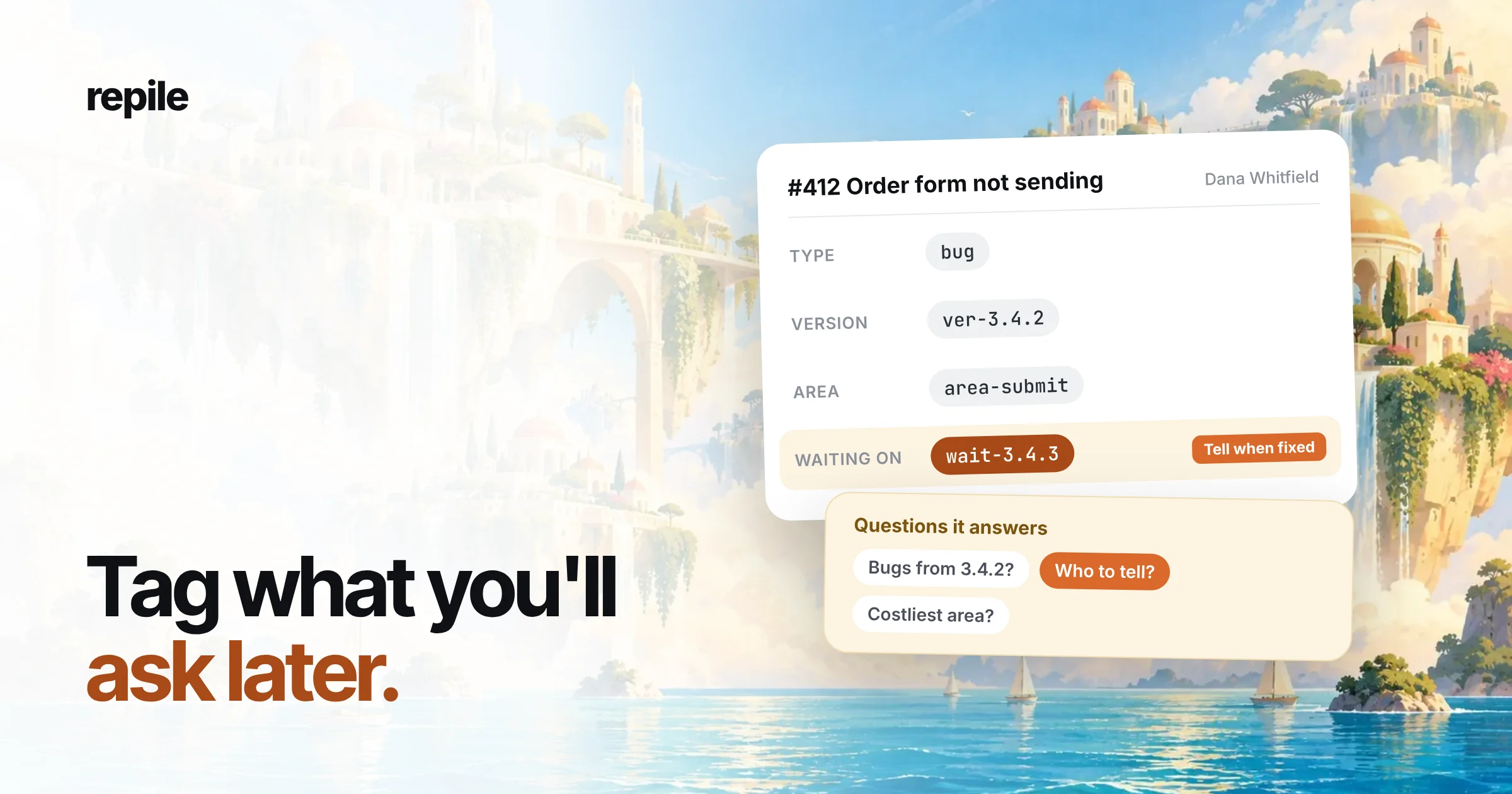
Ticket tagging means adding short labels to support tickets so you can find, count and route them later. For a WordPress plugin or theme team, the tags that earn their place answer four questions: what kind of ticket is it, which version, which part of the product, and what is it waiting on.
Below is a tag set you can copy, the naming rules that keep it clean, five tagged example tickets, and the questions it lets you answer at the end of the month.
What is ticket tagging?
A tag is a label on a ticket, like bug or license. One ticket can carry several, and you can filter, search and report on any of them.
Most of the guides that rank for this phrase come from helpdesk vendors. Their examples are about payments, shipping and account access, because they write for every kind of company.
A plugin team has different questions. Which release caused this? Is it the free plugin or Pro? Which customers do we tell when the fix ships?
Why tag tickets at all?
Because the questions come later. On the day a ticket arrives, you only want to answer it.
A month later, someone asks how many tickets the 3.4.2 release caused, or whether the license screen confuses people. Without tags, the answer is a guess or an afternoon of reading old tickets.
Tags are also how you find the right people again. When the fix ships, the customers who were waiting on it should hear about it first.
A tag set for a WordPress plugin team
Keep it small. Four groups, one prefix each, so a tag tells you its group at a glance.
type:   bug, how-to, setup, conflict, license, refund,
        feature-request, security
ver:    ver-3.4.2, ver-3.4.1 (the version the customer runs)
area:   area-submit, area-email, area-export, area-settings
wait:   wait-customer, wait-dev, wait-3.4.3
A few rules for each group:
- Type: exactly one. Pick the main reason the customer wrote. If a how-to question turns out to be a bug, change the tag.
- Version: the customer's version, not the latest. This is the tag that tells you which release caused the tickets.
- Area: one or two. Use the names your developers use for the parts of the code, so a tag maps to a place in the code.
- Wait: only while it is true. Remove it when the wait ends.
A theme team swaps the areas for its own parts: area-header, area-woocommerce, area-demo-import, area-customizer. The other groups stay the same.
If you sell a free plugin and a Pro add-on, add one more: plan-free or plan-pro. It tells you where support time goes, and it matters for refunds and renewals.
What not to make a tag
Some things look like tags but belong somewhere else.
- Priority. A ticket has one priority, and tags allow several. Use your helpdesk's status or a custom field, so a ticket cannot be both urgent and low.
- The customer's site details. WordPress version, PHP version and theme name change on every ticket. Write them in the internal note, not in a tag list that grows by ten values a week.
- One-off topics. A tag used once is a note. If no one will ever filter on it, do not create it.
- Feelings. Tags like
angryordifficultsay more about the agent's day than the ticket. They also read badly if a customer ever sees an export.
Naming rules that keep tags clean
Every guide on this topic says the same thing, and it is true: tag lists rot. Two people type how-to and howto, and both reports are wrong.
- Lowercase, hyphens, no spaces.
feature-request, neverFeature Request. - Prefix by group.
ver-,area-,wait-. You can see the whole group by typing the prefix. - Write the list down. One line per tag: what it means, and one ticket that should not get it.
- One person adds tags. Anyone can suggest one. The support lead decides.
- Clean up after each release. Delete version tags nobody filters on any more, and empty
wait-tags for releases that shipped.
Five tagged examples
These use our example product, the Formwise plugin, and a customer, Dana Whitfield at Northwind Bakery.
1. "The order form does nothing in Safari since I updated." Dana, ticket #412. You reproduce it on Formwise 3.4.2 and confirm it is your bug.
bug ver-3.4.2 area-submit wait-3.4.32. "Where do I enter my license key?"
license ver-3.4.2 area-settingsIf this tag comes up every week, the answer belongs in your FAQ and in a saved reply.
3. "The form breaks when I turn on my caching plugin." You check and find the other plugin delays your script.
conflict ver-3.4.1 area-submitKeep the other plugin's name in the note. If the same conflict keeps coming back, it becomes a known issue with its own entry.
4. "Can the form send entries to two email addresses?" It already can. The setting is under Notifications.
how-to ver-3.4.2 area-emailIf the customer asked for something it cannot do, it would be feature-request instead. Our post on the feature request template covers what to log.
5. "I found a way to read other people's entries."
security ver-3.4.2Security tickets skip the normal queue. The tag is there so you can count them later, not so they wait in a view.
What tags let you answer
This is the test of a tag set. If it cannot answer these, change it.
- How many tickets did 3.4.2 cause? Filter
ver-3.4.2andbug, by week, from the release date. - Who do we tell when 3.4.3 ships? Filter
wait-3.4.3. Write to each customer, then remove the tag. - Which part of the product costs the most support time? Count tickets by
area-tag. Count tickets, not tags, because one ticket can have two areas. - What should the docs explain better? Look at
how-toandsetupby area. The biggest group is your next help page. - Is a bug getting worse? Several tickets with the same version, area and
bugtag are probably one bug. See our post on duplicate tickets.
The wait- tag is the one most teams skip, and it is the one customers notice. "It is fixed in 3.4.3, which is out today" is a better email than an angry follow-up a week later.
Tags in Help Scout, FreeScout, the forums and GitHub
The tag set is the same wherever you answer tickets. Where it lives is different.
- Help Scout has tags on every conversation, and its workflows can add them.
- FreeScout adds tags through a module. Check your install before you plan reports around them.
- The WordPress.org forums do not give plugin authors a private tag set. Keep your own record of forum topics that wait on a release.
- GitHub has labels. Use the same
area-names there, so a ticket and its issue match.
Should you tag tickets automatically?
Rules work for facts. A ticket from the Pro contact form can get plan-pro without anyone reading it.
The type tag is harder. "The form doesn't work" can be a bug, a setup mistake or a conflict, and the customer does not know which.
Whoever tags it has to check first.
That is why tagging and ticket triage are the same job. The tag is just where the triage decision gets written down.
Where Repile fits
Repile does not add tags in your helpdesk. Your tag set and your reports stay in Help Scout or FreeScout.
What Repile does is the checking that a good type tag depends on. It triages each ticket as a real bug, a setup question or a duplicate.
It reads your plugin's code for the release the customer has installed, so "our bug" comes with a file and a line (code reading).
The verdict goes into an internal note with a reply draft, and a person presses send (notes and drafts). Ticket status stays yours: Repile mirrors it from your helpdesk (status sync).
You can also write your rules into the project's instructions, for example "always ask for the plugin version". See how it fits a plugin company or a theme company, or compare the plans.